 0
0
 0
0
Getting a good night’s sleep is harder than ever with the constant buzz of notifications and endless scrolling. Thankfully, the iPhone Sleep Mode—better known as Sleep Focus—is designed to help you disconnect, rest, and wake up refreshed. Unlike a simple “Do Not Disturb,” Sleep Focus is a complete system that silences distractions, adjusts your lock screen, and even syncs with your Apple Watch to encourage healthier sleep habits.
In this guide, we’ll break down everything you need to know about iPhone Sleep Mode, from setup to customization, so you can finally reclaim your nights.
What Is Sleep Mode on iPhone?
On an iPhone, Sleep Mode is part of Apple’s Focus features. It isn’t just about silencing calls—it’s about creating an environment that promotes rest. Sleep Mode does three important things:
-
Blocks unnecessary notifications so your sleep isn’t interrupted.
-
Simplifies your lock screen to keep distractions out of sight.
-
Follows your sleep schedule to turn on and off automatically.
With Apple’s Health app integration, Sleep Focus also lets you track your sleep habits and build routines for better long-term rest.
Key Features of iPhone Sleep Mode
Sleep Mode is more than just muting alerts. Here’s what makes it powerful:
1. Silenced Notifications
When Sleep Mode is active, all notifications are muted—unless you allow specific apps or contacts. For example, you can silence social media but let emergency calls from family through.
2. Priority Notifications
Need to stay available for critical updates? You can allow priority notifications, like repeated calls or texts from certain contacts, so you never miss something important.
3. Simplified Lock Screen
Sleep Focus replaces your normal lock screen with a minimal, distraction-free version. No clutter, no flashy notifications—just a calm screen ready for rest.
4. Wind Down Mode
Before bedtime, you can enable Wind Down, which gradually transitions you away from your phone. It may dim the display, limit app access, and even suggest relaxing shortcuts like meditation or reading.
5. Automated Responses
If someone messages you while you’re sleeping, your iPhone can auto-reply, letting them know notifications are silenced.
6. Share Across Devices
Turn on Share Across Devices in Settings, and your Sleep Focus automatically applies to your iPad, Apple Watch, and even Mac.
7. Customizable Home Screen
You can set up a custom Home Screen that only shows essential apps at night—perfect for avoiding temptation to scroll.
How to Set Up Sleep Mode on iPhone
You can activate Sleep Mode in two main ways: via the Health app for a full schedule or manually through Control Center.
Step 1: Open the Health App
-
Launch the Health app on your iPhone.
-
Tap Browse at the bottom right.
-
Select Sleep.
Step 2: Set Up Your Schedule
-
Tap Full Schedule & Options.
-
Create a bedtime and wake-up time.
-
Add different schedules for weekdays and weekends if needed.
Step 3: Customize Sleep Focus Settings
Here, you can:
-
Choose who can contact you during Sleep Focus.
-
Allow or block specific apps.
-
Set up Wind Down shortcuts for activities like meditation, journaling, or dimming smart home lights.
How to Turn Sleep Mode On or Off Manually
Sometimes you’ll want to enable or disable Sleep Mode outside your normal schedule. Here’s how:
-
Open Control Center: Swipe down from the top-right corner of your screen.
-
Touch and Hold the Sleep Icon: This opens Sleep Focus options.
-
Tap Sleep Focus: Toggle it on or off instantly.
If you turn it off early, don’t worry—it will still return automatically at your next scheduled bedtime.
Scheduling Sleep Focus for Better Habits
Consistency is key when it comes to sleep. Apple designed Sleep Focus to encourage routine, and it syncs directly with your Health app.
-
Open Health > Sleep.
-
Scroll to Your Schedule.
-
Adjust your sleep and wake-up times.
-
Turn on Use Schedule for Sleep Focus to have it activate automatically.
You can even set different times for weekends, making it flexible without sacrificing consistency.
How to Modify or Turn Off Sleep Mode Schedule
Your lifestyle may change, so Apple makes it simple to edit or stop Sleep Mode:
-
Open Control Center and tap the three dots on the Sleep icon.
-
Go to Settings > Focus > Sleep.
-
Adjust your schedule or toggle it off completely.
This flexibility ensures Sleep Focus always fits your needs.
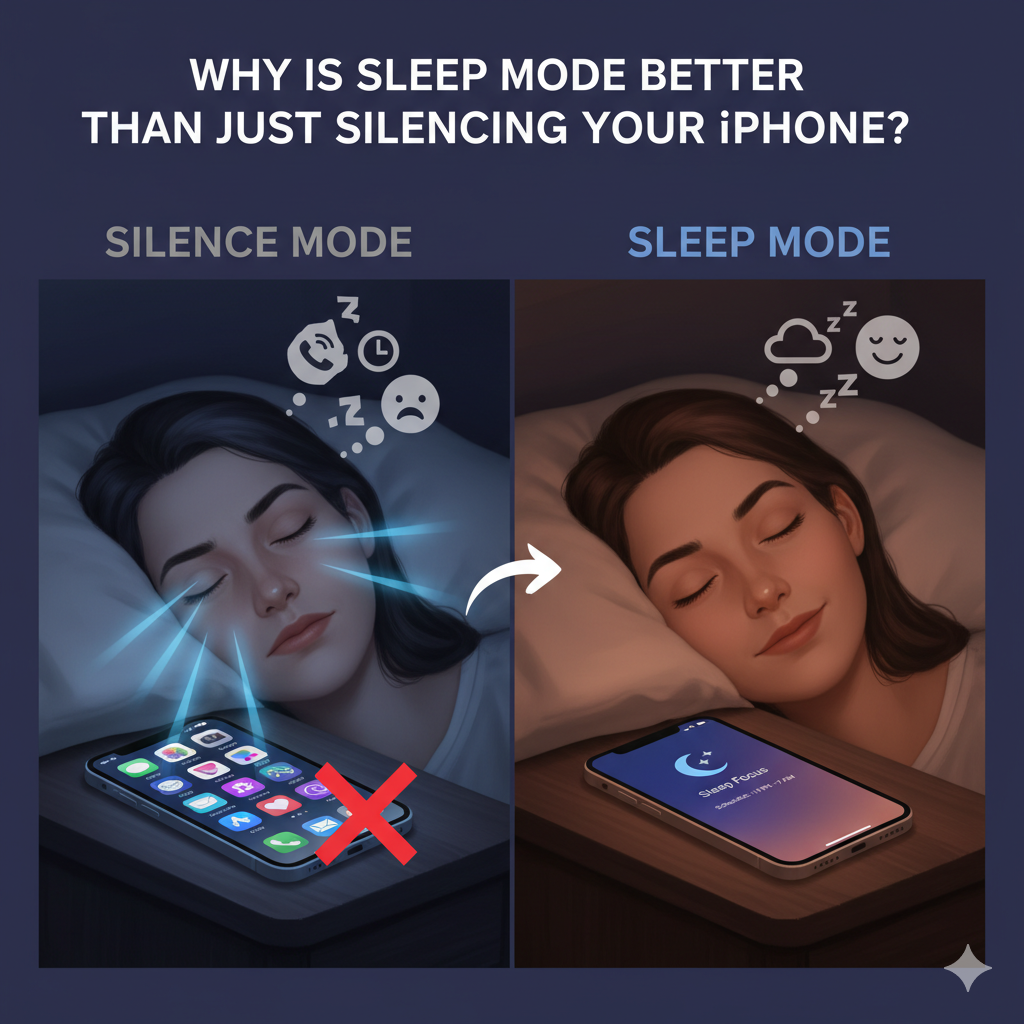
Why Use Sleep Mode on iPhone?
You may be wondering—why not just leave your phone on silent? The answer lies in customization. With Sleep Mode, you get control and balance:
-
Avoid late-night distractions.
-
Wake up without a cluttered lock screen.
-
Stay reachable for emergencies.
-
Create routines that support healthier habits.
It’s not just about blocking noise—it’s about giving yourself permission to truly disconnect.
Tips for Maximizing Sleep Mode Effectiveness
Want to make the most out of Sleep Mode? Here are some expert tips:
-
Pair it with Apple Watch: Track your sleep patterns in detail.
-
Use Wind Down smartly: Add shortcuts like guided breathing, music, or reminders to stretch.
-
Integrate with smart home devices: Dim your lights automatically when Sleep Mode activates.
-
Keep it consistent: The more regular your schedule, the better your sleep quality becomes.
Troubleshooting Sleep Mode
If Sleep Mode doesn’t seem to be working:
-
Check Focus Settings: Go to Settings > Focus > Sleep and confirm your preferences.
-
Update iOS: Sometimes a quick update fixes bugs.
-
Restart Your iPhone: A classic fix that often solves small glitches.
-
Recheck Allowed Contacts/Apps: You might have accidentally allowed too many, making it feel like Sleep Mode isn’t working.
Final Thoughts: Sleep Better With iPhone Sleep Focus
Sleep Mode on iPhone isn’t just another setting—it’s a lifestyle tool. By silencing distractions, managing notifications, and promoting consistency, it helps you create the kind of environment where real rest is possible.
With just a few minutes of setup, your iPhone can become an ally in achieving better sleep, improved health, and more productive days.
NCD!


